The Bot Wizard is designed to help end-users create a Decision Flow model with an Agent to run autonomous jobs using AI and MCP services in a few clicks. Agents operate as if they are a user making decisions and performing tasks to achieve specific goals. The Bot Wizard also provides the mechanism for scheduled execution and distribution of any responses.
The Agent designer in Formulate lets Pro users fully define and configure custom agents that you can use in the Bot. While the Decision Flow modeler lets you edit flows created by the Bot.
As an example, you might want to create an agent that analyzes your stock portfolio asset allocations on a daily basis by using a Discover report (and query) run against your investments database, which contains the list of stocks, amounts, allocations and weightings. Your instructions describe the tasks your agent should perform and tells it exactly what to do: "Tell me if my allocations are good". The instructions could use external "tools" to get trusted data from a various stock market "MCP" services. It could also reference independent data and content or "knowledge" to better inform the agent's analysis, such as a guide to investing or opinions on the current market.
Note: This feature requires specific licensing options.
The Bot Wizard is available from both Discover and Tabulate.
Discover Data in Bots and Agents
Agents running against Discover reports incorporate the actual result set data of the underlying query into the agent's calculus. This allows the AI agents to evaluate the results in addition to incorporating feedback from other sources. The Discover queries, like all content, is sourced from your organizations internal data and is refreshed each time the agent is run in a decision flow.
Users should ensure that the data in their queries can be shared with third-party AI services and LLM vendors before using this feature.
Launching the Bot
Before you begin
- You can only create an agent for a discovery that has already been saved. Where this is not the case, the Bot Wizard button is disabled in the Home ribbon.
- You can only create agents using a Bot where an LLM Provider has been enabled for you. Where this is not the case, the Bot Wizard button is not available on the Home ribbon. For more information, see AI Settings.
Opening the Bot Wizard
To open the Bot Wizard dialog, click Bot Wizard from the Home ribbon:

Using the Bot Wizard
Select an Agent
With the Bot Wizard dialog open, you can choose from these starting points:
- Marketplace Templates: If you want to choose a built-in template, select the Marketplace tab and then select one of the predefined, built-in templates to get started quickly. Templates typically contain detailed instructions, which might give you a head start on defining your agent.
- Use a Blank Agent: If you want to use a blank template, select the Marketplace tab and then the "blank" option. In the Bot Job panel, supply all details as described below.
- Custom Agents: If you want to use an Agent that you or someone else has defined and saved into the platform catalog, select the Custom Agents tab and then select your agent from the content tree.
Bot Job
The Bot Job panel contains all of the details of your selected Agent. You can make "on the fly" edits to these settings.
Instructions Tab
Agent instructions tell the agent how to behave and respond, defining both the agent's persona (what it is like) and its instructions (what it is supposed to do). You can specify the following details:
- Name: The name of the Agent. This name will be used for both the Agent object and its Model (the Decision Flow that contains the agent) when they are created.
- Persona: The character that we want the Agent to assume when it is fulfilling its instructions. This describes a simple, fictional user profile or job description that represents a typical target user's goals, behaviors, and needs.
- Instructions: This is the most important information for the Agent. It describes what the Agent needs to do; what it needs to look at, how to analyze that content, and what it needs to return. You should consider using lists or keeping your instructions in sequence to make sure that you cover everything. Also, be aware that if you use Tools or References, it might be a good idea to indicate how and when to use their content here.
Tools
MCP service and tools bring external capabilities to the AI agent. When you add an MCP tool, you incorporate functionality and data from other third technologies, extending your agent's capabilities with services that are specific to your requirements.
Add Tools
If you used an agent template or a custom agent, the MCP tool selections may have already been made for you. However, you can edit these selections or make new ones.
From the Tools page:
- Open the Tools Marketplace.
- If there are currently no tools selected, click Click here to start adding tools in the middle of the page.
- Otherwise, click Add Tools at the top-right.
- Optionally, filter the list of available tools by typing an entry into the search field at the top-right (purple arrow above).
-
Click the Plus (+) icon (blue arrow) to choose the Tool you want to add.
- Once you have selected all the Tools that you want to make use of, click Selected Tools from the top-left of the dialog (green highlight) to return to the previous page.
The Tools Marketplace opens:
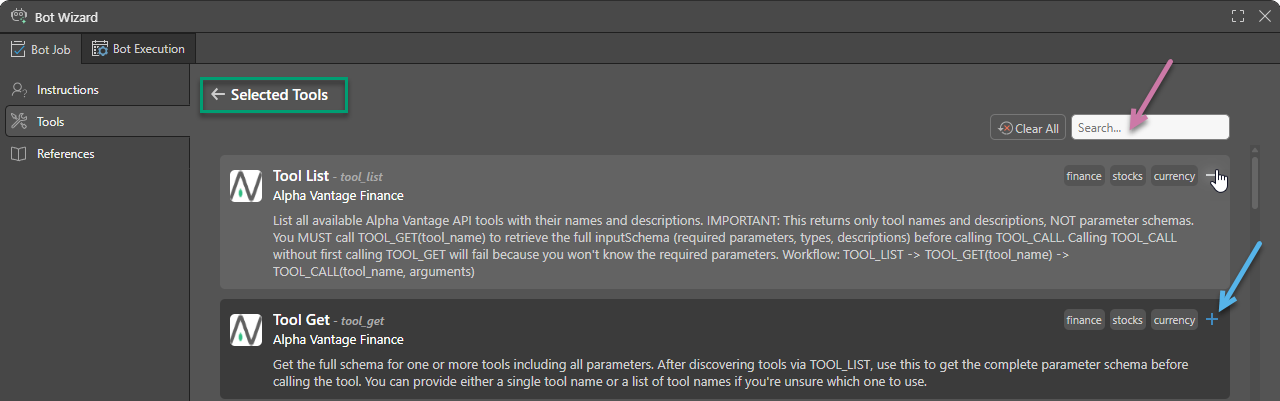
This is a "Contains" search, which searches for your string in the Tool Names, Tags, and Descriptions.
If you need to remove a selection later, you can click the Minus (–) icon. If you want to remove all selections, click Clear All from the top-right.
Tip: If you add Tools and References, you should always return to your Instructions and make sure it is clear what your agent should do with them.
References
Add Reference Files
If you used an agent template or a custom agent, the reference documents may have already been added for you. However, you can edit these document selections.
From the References page:
- Add the file using the Drag & Drop target:
- Drag the file from its folder location and drop it onto the target.
- Click the target to access the Open dialog, where you can navigate to the file's folder location and select the file.
- Repeat as required.
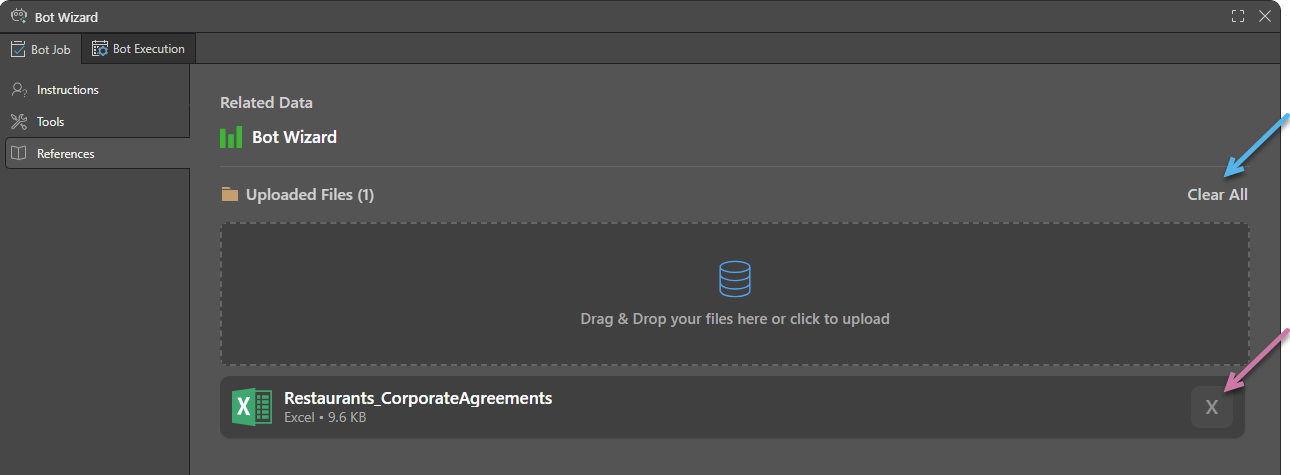
The file is added to the Uploaded Files list:
Remove Reference Files
- Click Remove (X) (purple arrow above) to delete a single reference file.
- Click Clear All to remove all (blue arrow) reference files.
Bot Scheduling and Execution
Set up the schedule configuration that allows the Bot to automatically process the data model either once or at recurring intervals. Recurring builds ensure that the model is regularly updated with the latest data. Currently, the model owner will receive an email notification whenever the data model is successfully processed. Click here to learn how to configure the email node.
The page is broken down into three sections, where you can configure the execution schedule for your model:
 Job Details
Open the Job Details panel to define the details of the Schedule itself:
- Name: The default schedule name is the model name and the schedule creation date and time. You can change the name as required.
- Description: Add an optional description.
- ETL Execution Part: Execute the entire Master Flow (including data flow and models) or execute the models only.
- Override Security: Select this checkbox to override metadata security set from the Admin console or the Materialized Manager. Clear this checkbox if metadata security should not be affected by processing the data model. Click here to learn more.
- Sync Model Columns: Select how the tables in the model should be synchronized. Click here to learn more.
Schedule
Under Schedule, set the schedule to Once or Recurring.
Once
Select Once from the dropdown list to run the schedule once only, either immediately or at a specified time and date:
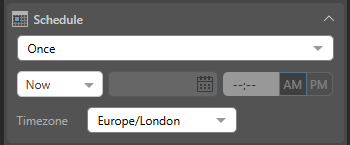
- Now: The schedule will run immediately.
- Delayed: The schedule will run at the specified time and date.
Timezone
Select the required timezone from the Timezone dropdown list. The schedule will run according to the selected timezone.
Schedule Handling
Open the Schedule Handling panel to define the system default values for scheduled jobs:
- Schedule timeout: Disables the scheduled task after this amount of time. Selecting None means that the job will run without ever aborting.
- Disable schedule after consecutive failures: Disables the scheduled task after this number of attempts is reached. Once a job has failed more than this number of times, it is canceled and will only run if it is manually restarted. Selecting Never disable means that the job will continue to retry regardless of the number of failures.
- Time to keep Model processing logs: Sets the amount of time to keep the Model processing logs in the system.
Finalize Settings
- Click Test to run the agent in the dialog and get a sense of how it will operate.
- Click Apply to tell the Bot to create or launch the agent, build a Decision Flow containing it, and setup its schedule.
The output produced, and information about the test, are displayed in a pop-up window.
If you used a template, a new Agent and Decision Flow are created alongside the parent discovery or tabulation. If you used a custom agent, only a new decision flow is created. The newly created items use the Name value specified in the Instructions panel.
The Model will either run right away or will be scheduled to run according to the configuration. The last node in the Decision Flow is an Email node, meaning that, once the Model is processed, the content created by the agent is emailed to the model owner (the user who created this model).
What Next?
You will receive an email notification whenever the data model is successfully processed. You can open the Decision Flow in Model and edit the Properties of the Email node to send your Agent output to a different email address or different set of email addresses.
- Click here to learn how to configure the Email node.